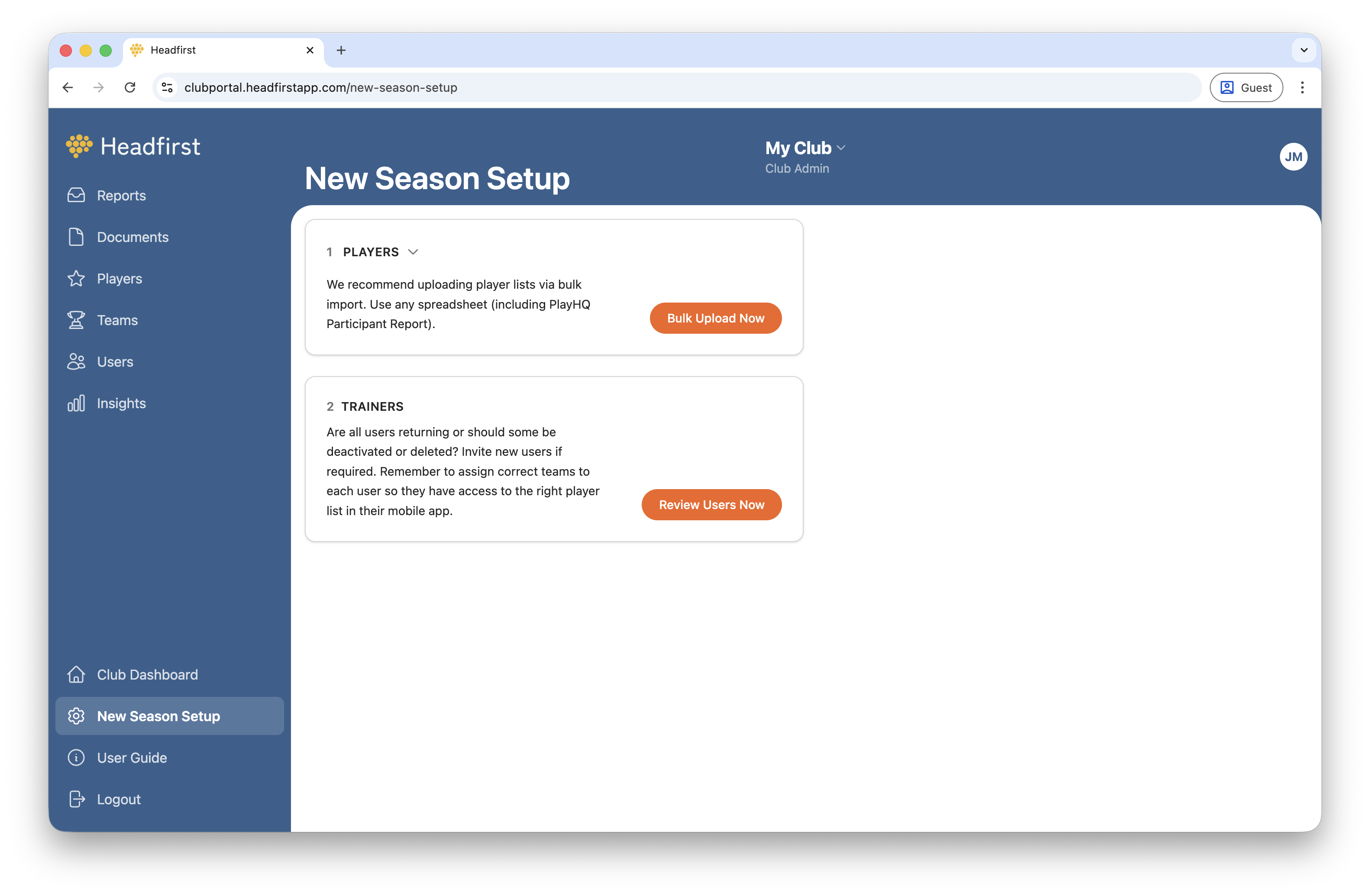
Starting a new season, whether you're new to the role or just picking up where you left off, can feel overwhelming. That's why we created the New Season Setup to guide you through the process step by step.
Getting ready involves two simple steps:
- Import players (make sure your spreadsheet includes team allocations)
- Add and assign Trainers to Headfirst
While you're at it, review the Trainers who already have access to the app. Do they all still need it? If not, make sure to deactivate or delete them.
It's also a good time to head to the Documents section and upload the latest guidelines, forms, or links, and review any existing documents to make sure they're still current.
All submitted reports appear in the reports inbox. From here, set report statuses, add expected return-to-play dates, and record medical confirmation of concussions.
While some features are only available on desktop, reports can still be easily read, processed, and shared on the go.

Use search or filters to find and prioritise the reports that need your attention next.

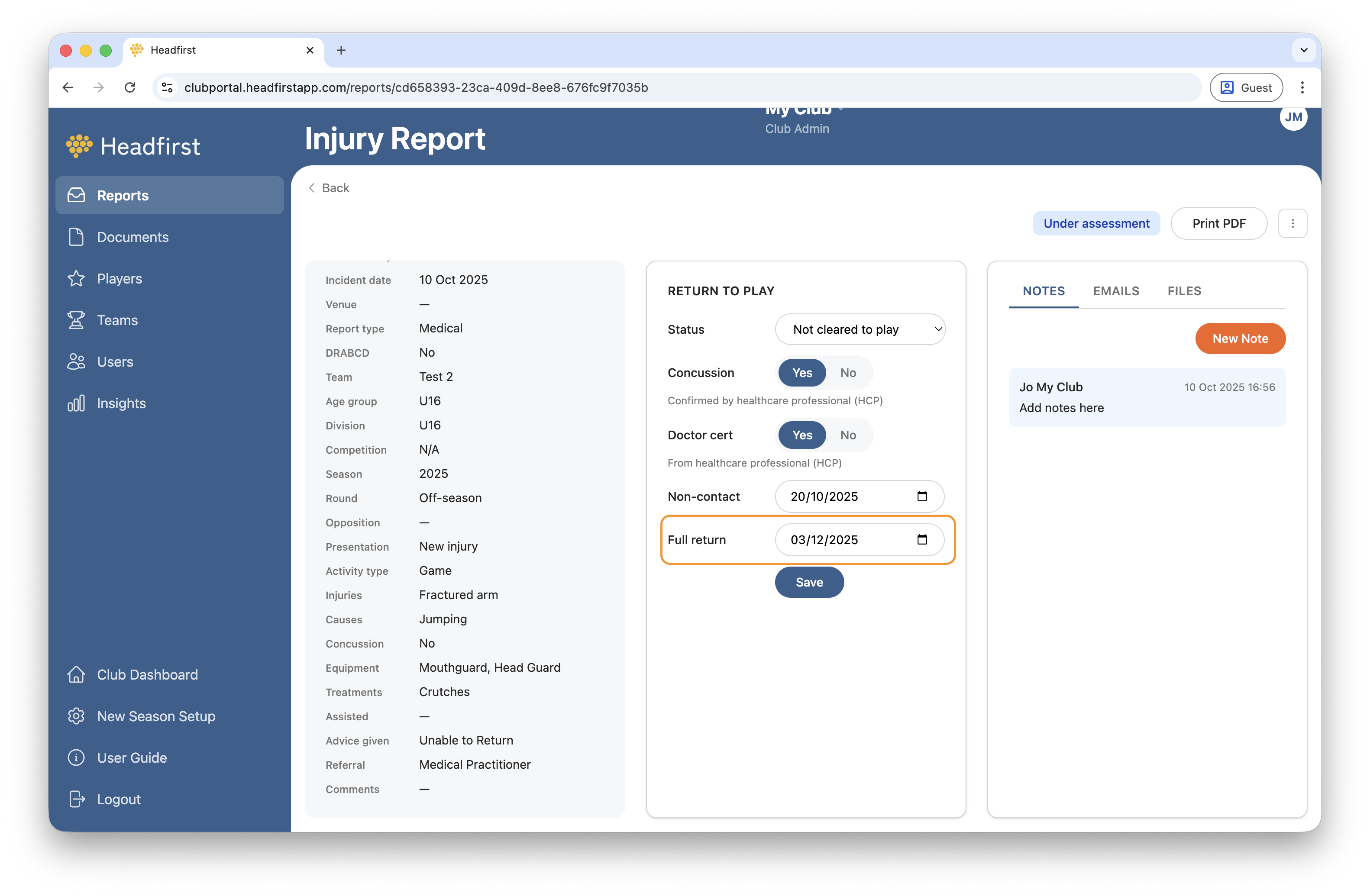
Process reports as they come in by setting the report status, recording whether a concussion has been confirmed by a medical professional, and adding an expected return-to-play date. When you're done, save your changes. You can also download a PDF version of the report or delete it using the menu in the top right corner.
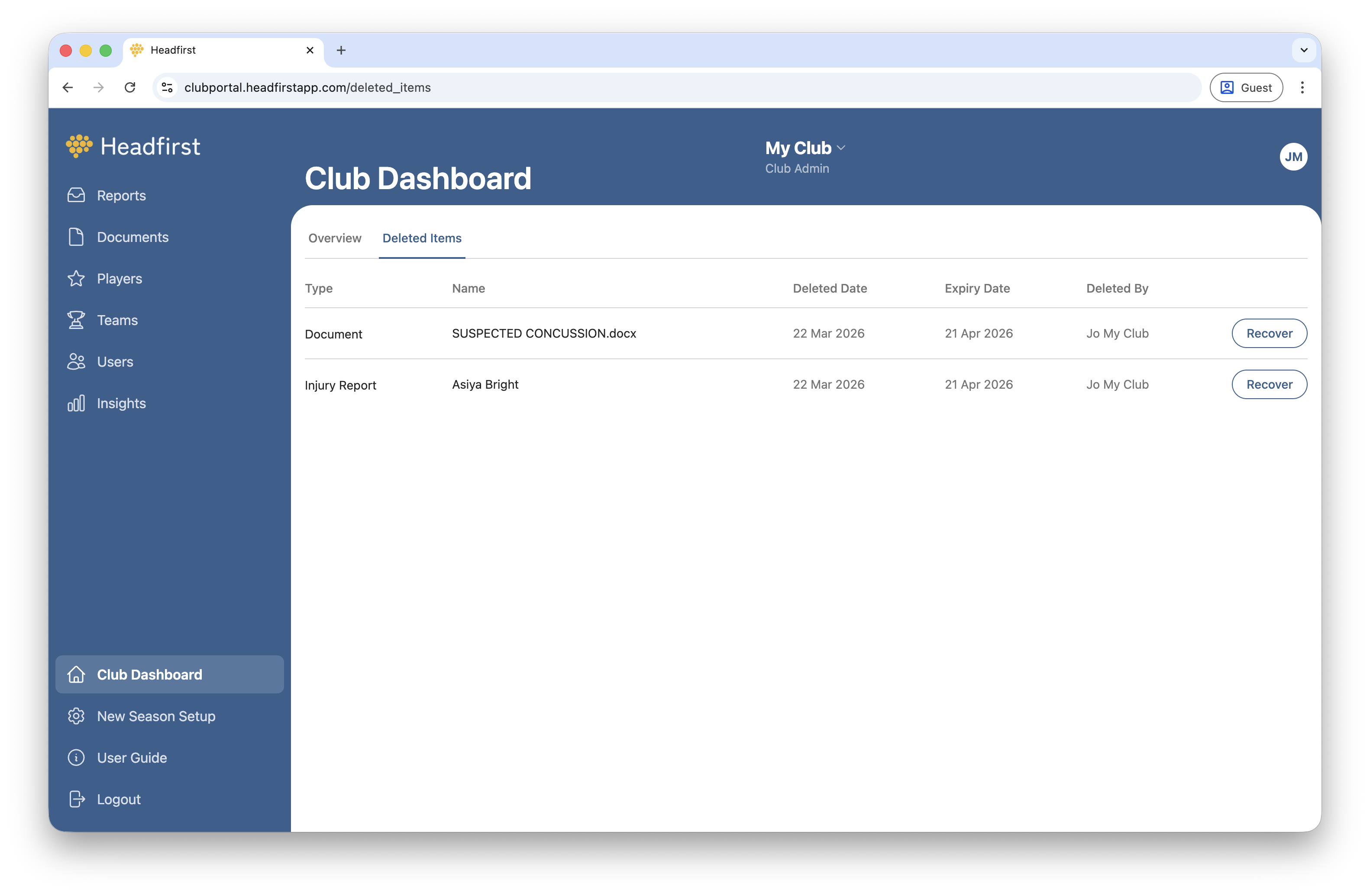
Deleted reports are stored in Club Dashboard > Deleted Items for 30 days, after which they are permanently removed.
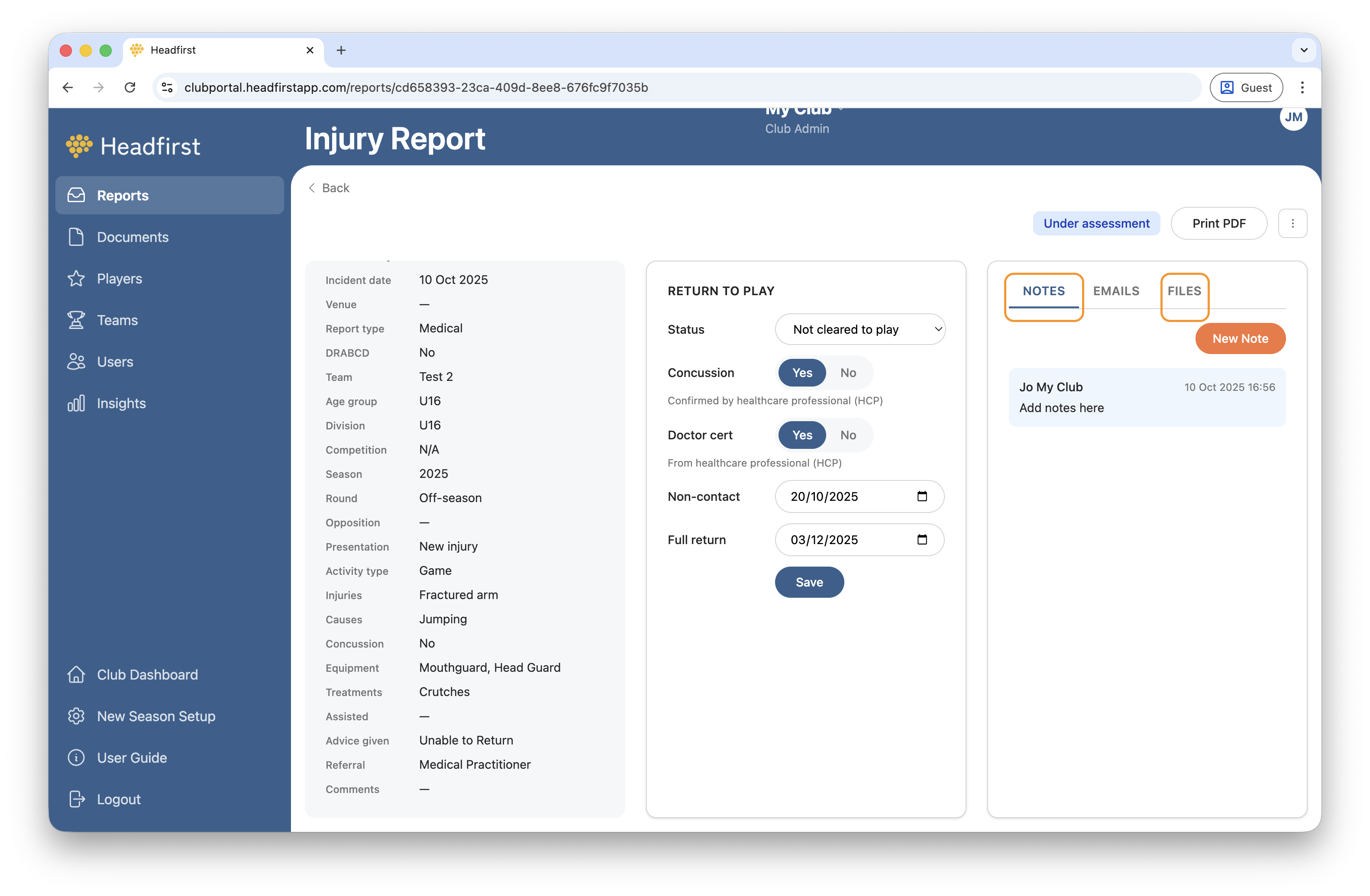
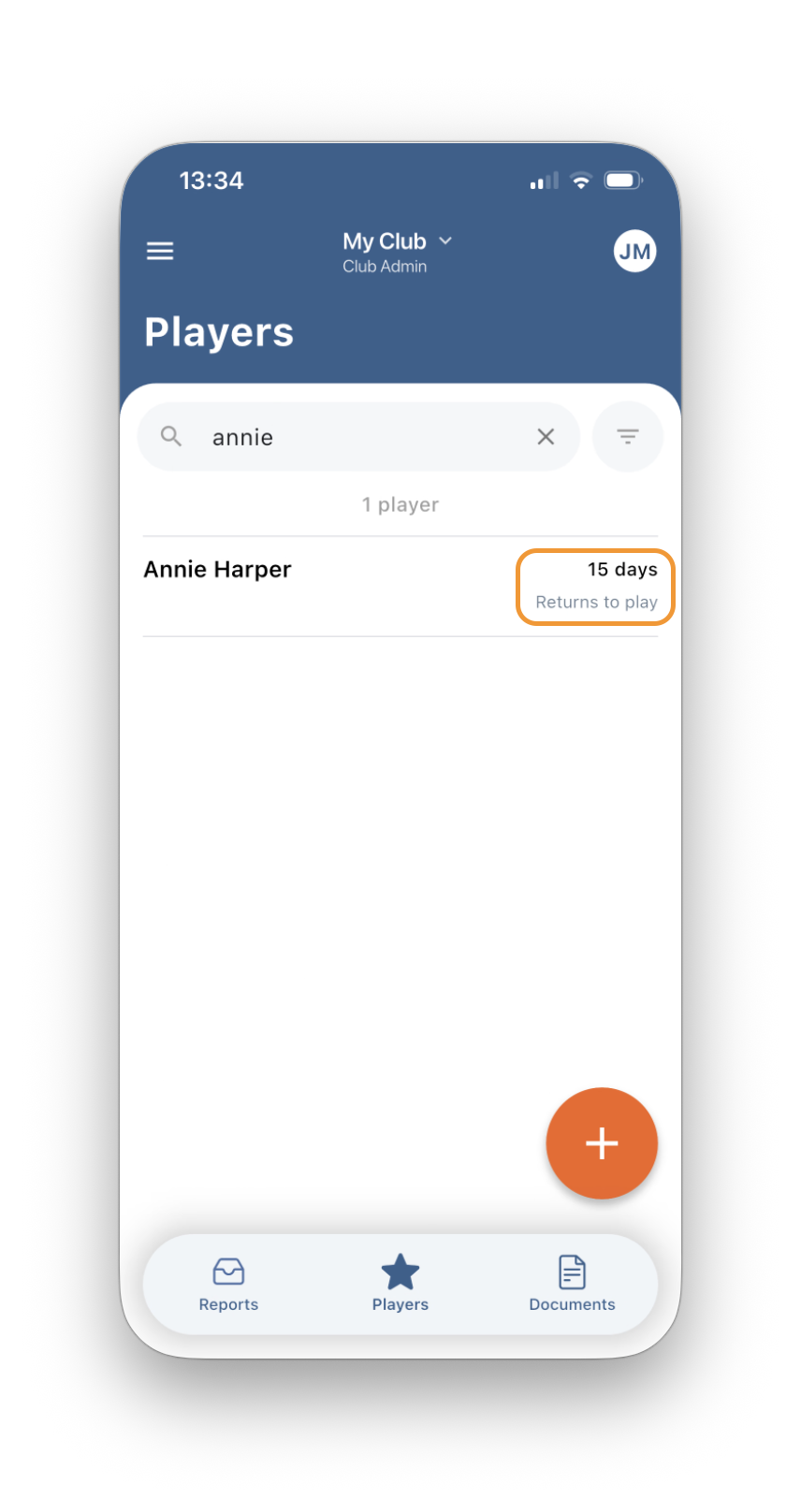
Click into the date fields to enter expected return-to-play dates. The date set for Full Return will also appear in the Player section of the portal and mobile app.

Add notes and upload files related to the injury report. Both Trainers and Club Admins can add and view notes, keeping everyone on the same page. You can also upload new files or photos, or remove any that are no longer needed.

Email reports directly from the Club Portal. Head to the Email tab and you'll find the player's linked email addresses — such as their team trainer and emergency contact, already populated in the To field. Remove or add addresses as needed, write your message, and hit Send.
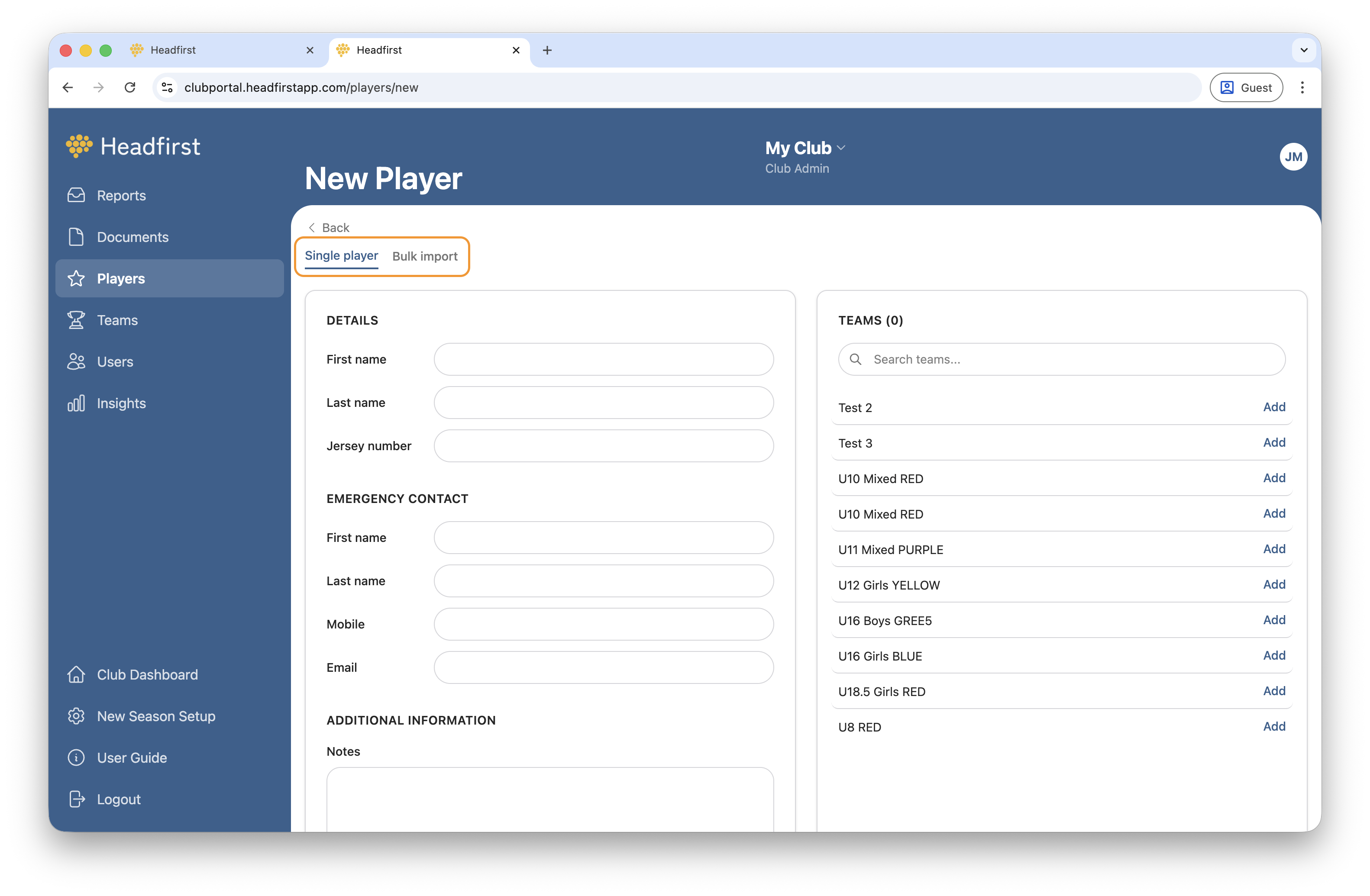
This is where all currently active players in your club are listed. To add players, click the + icon. You can add them one by one manually, or import multiple players at once using a spreadsheet.
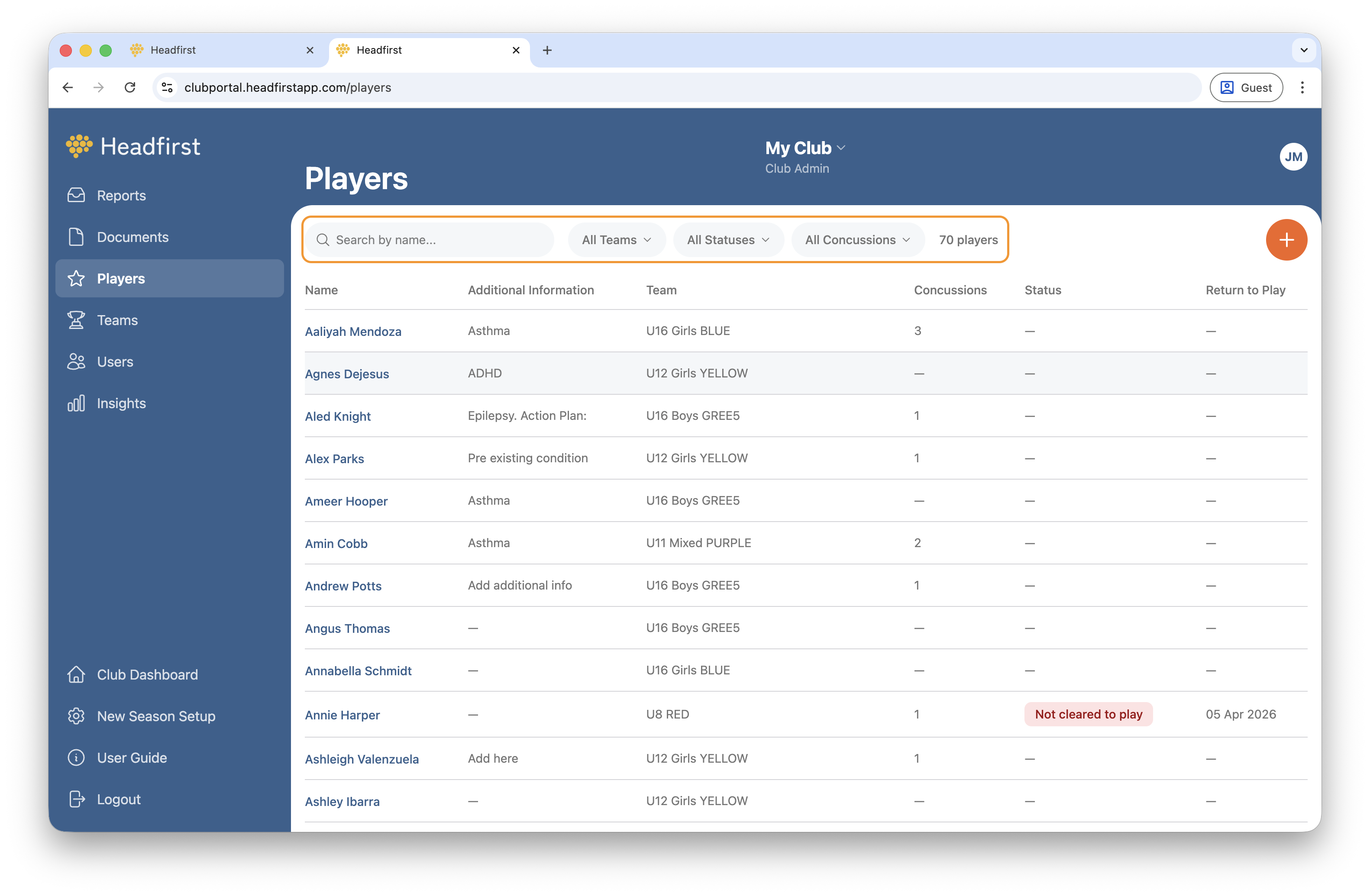
Use search or filters to find and prioritise specific players, or click any column header to sort the list.
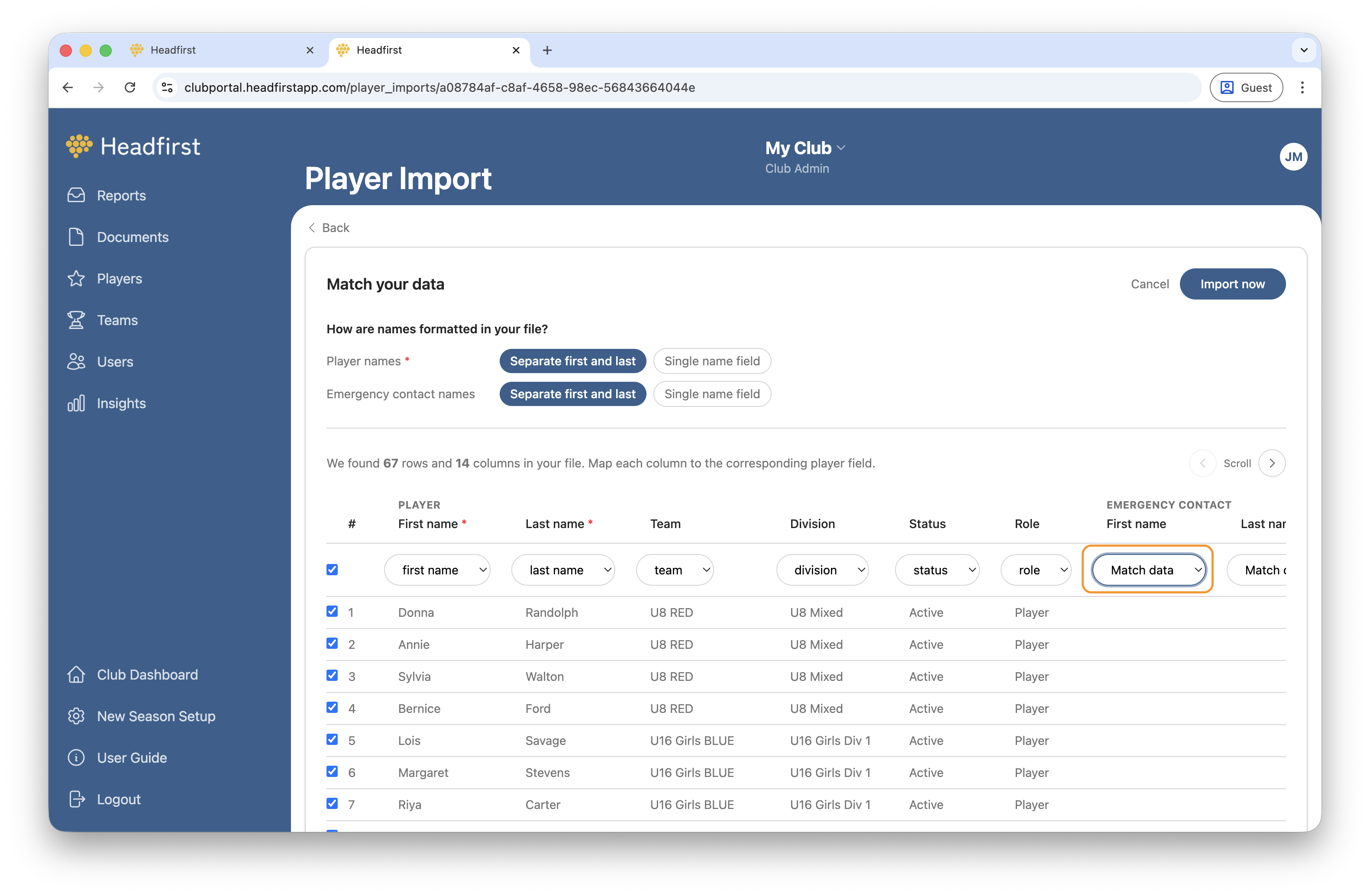
Using the bulk import feature is fast and easy. Simply prepare your spreadsheet and upload it. Any Excel or CSV file can be used as long as it includes the following columns:
Player name
Team
Division
Emergency contact
Once uploaded, match your spreadsheet columns to the corresponding Headfirst fields using the dropdown menus along the top of the table.
💡 Handy tip for PlayHQ users! You can export your Participant Report from PlayHQ and import it directly into Headfirst. To make sure only current players are included, include the following in your import:
Status
Role
This ensures only current, active players are imported. Excluding past or inactive players, as well as any other volunteers who may also appear in the report.
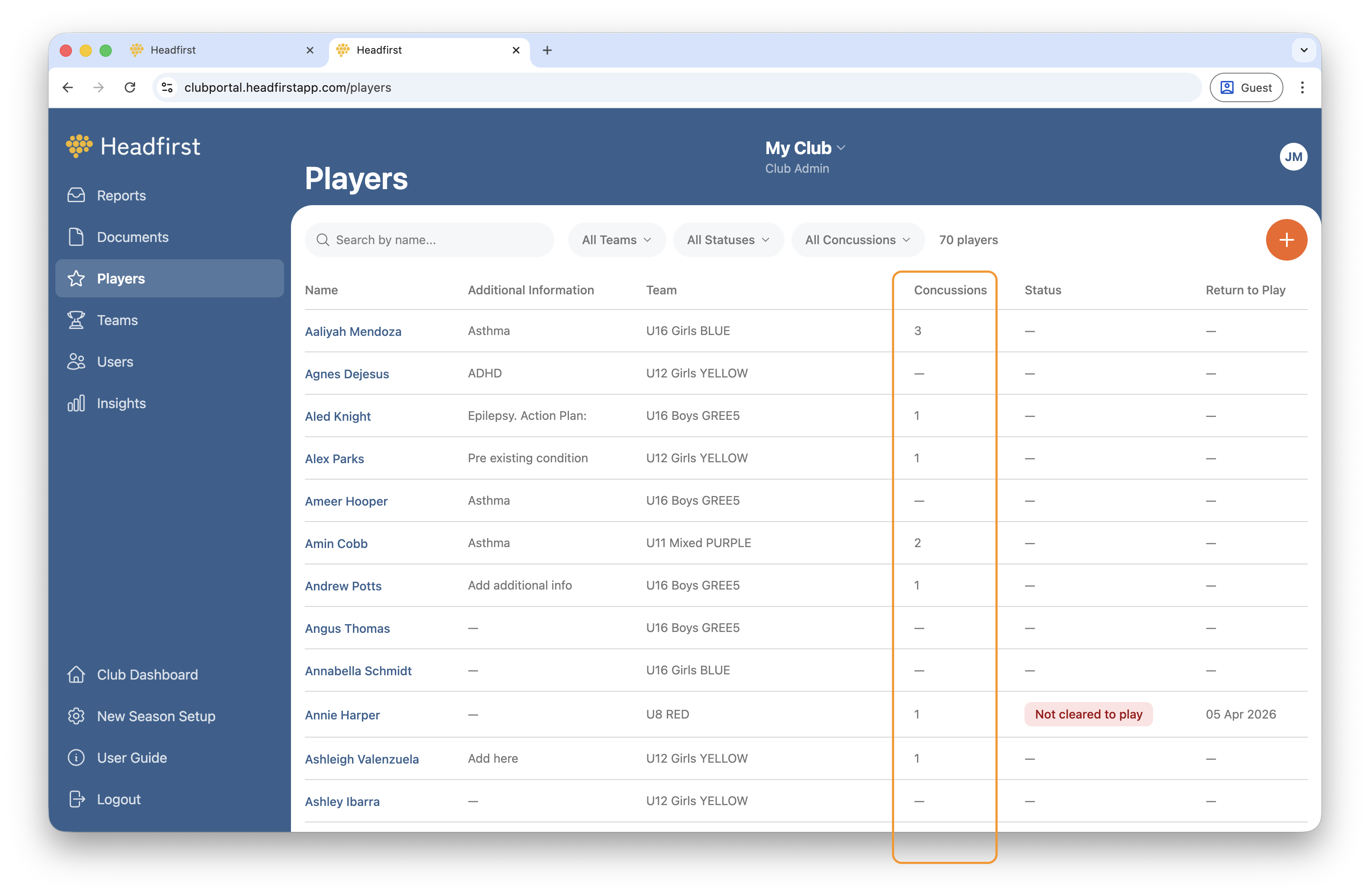
The list view serves as both a concussion register and a match fitness tracker. The Concussions column shows the total number of concussions recorded for each player to date. If a player is currently out, you'll also be able to see when they're expected to return to full match fitness.
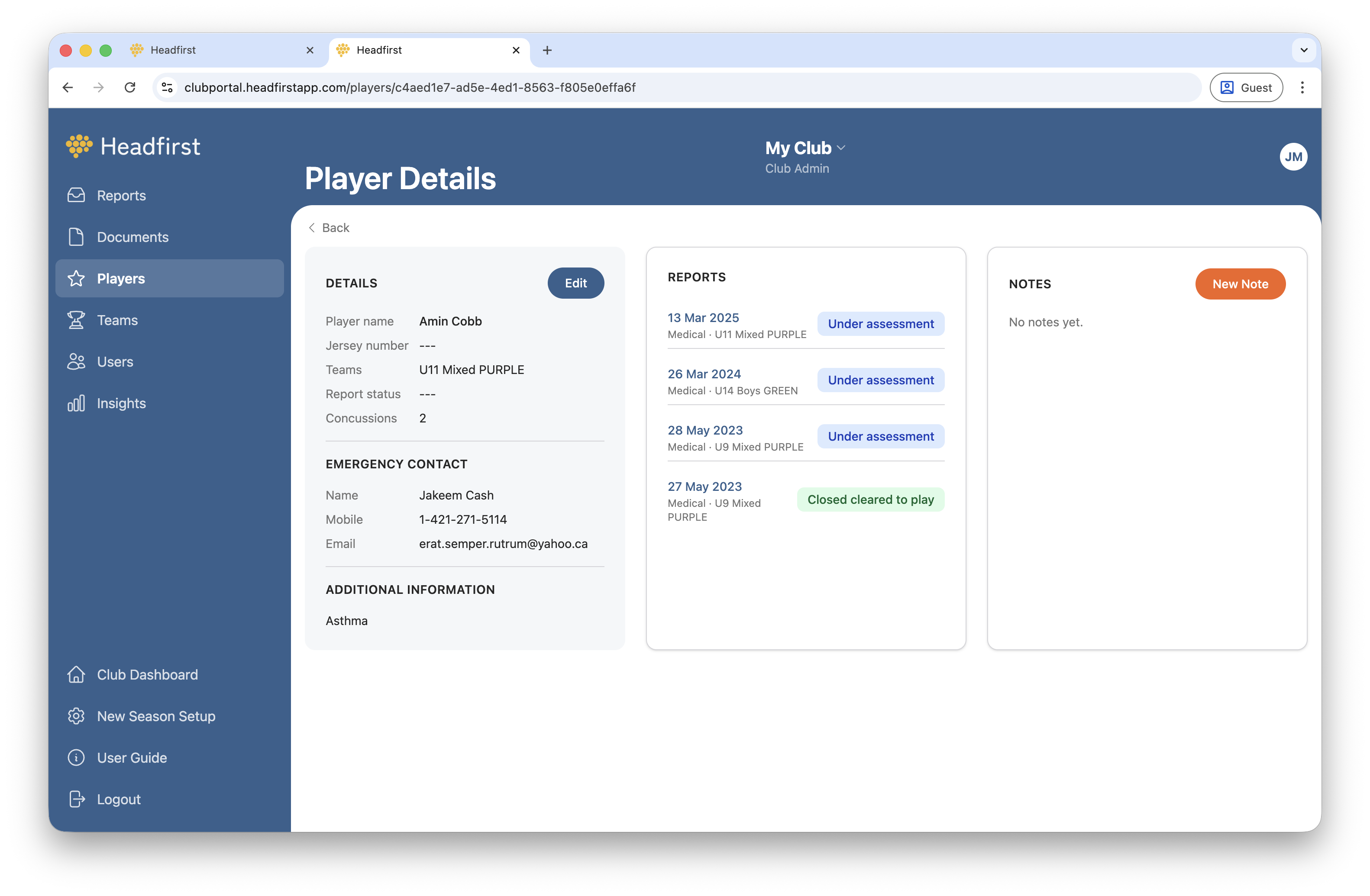
Click on any player to view their details, see past reports, and add any pre-existing medical conditions. Trainers will see these conditions in their app and can tap on a player's profile to view the full instructions.
Upload guidelines, handbooks, checklists, or any other documents that help Trainers do their job well.
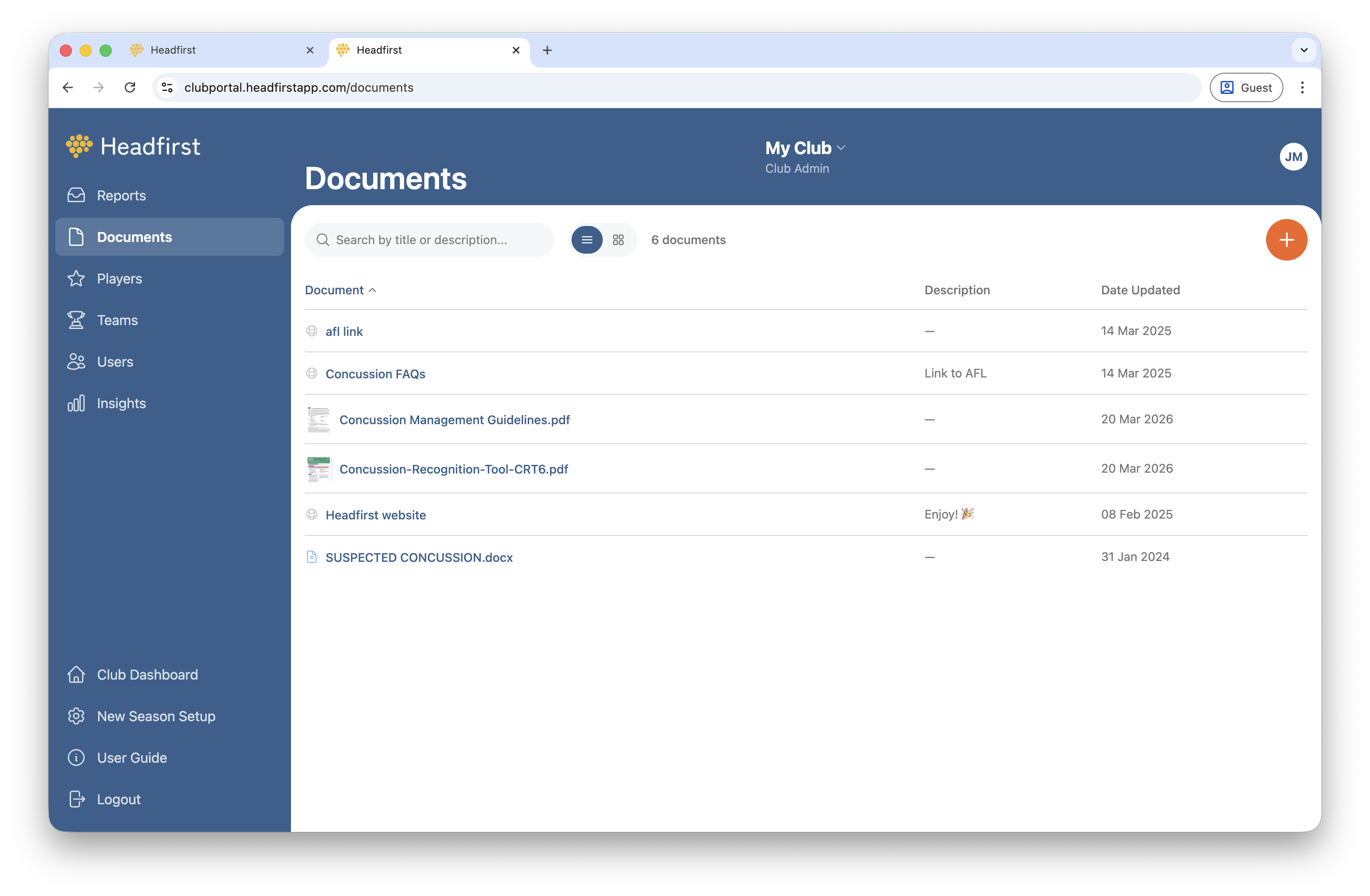
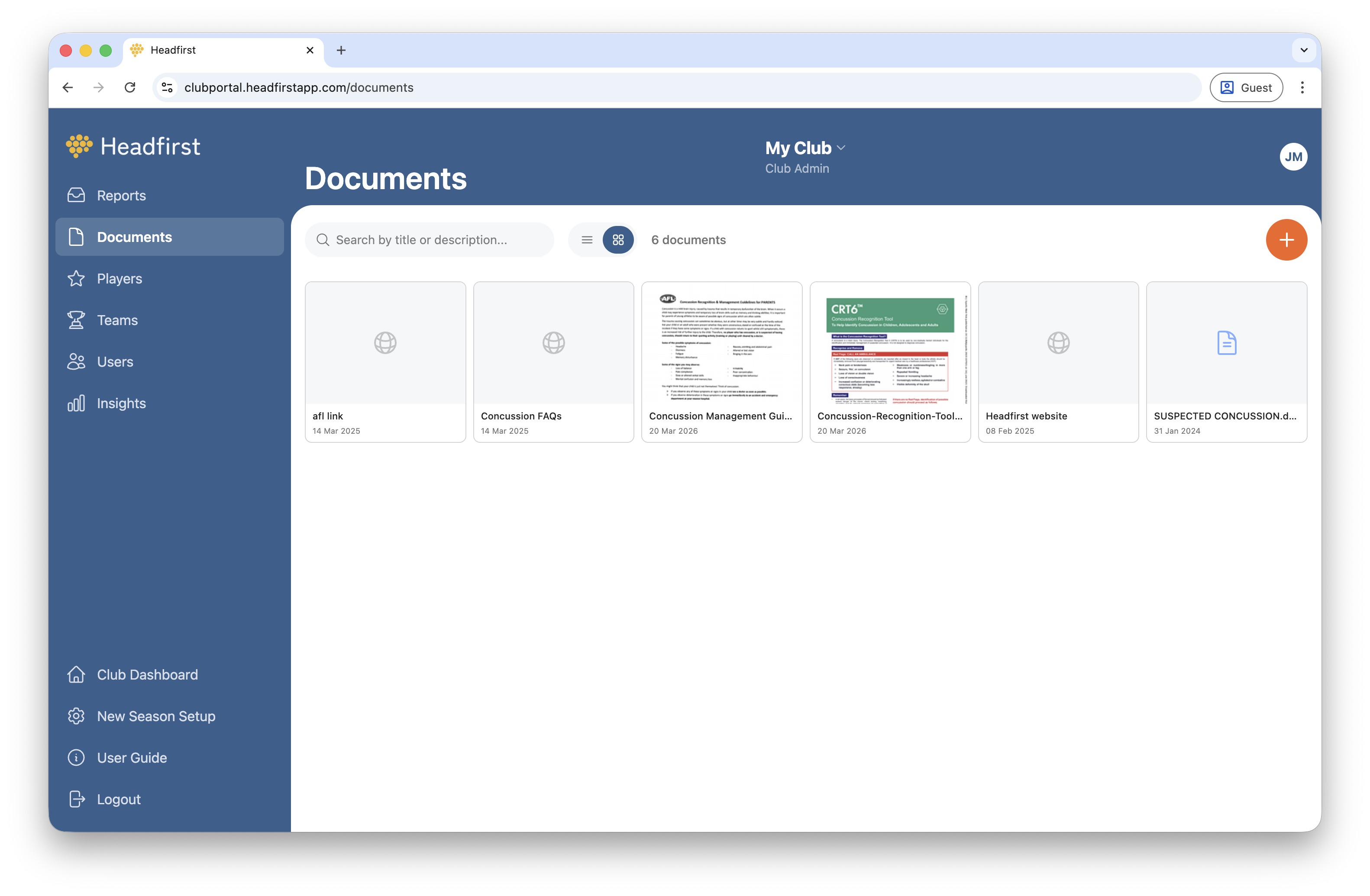
View your documents as a list or as cards with previews. Upload new documents, web links, or photos, and click on any item to preview, edit, or delete it. Trainers can access all documents in their mobile app and share them directly via SMS or email.
Users can only access the app using the exact email address entered in the Club Portal, so make sure each person has been added before they log in. Trainers are asked to record expiry dates for courses such as First Aid, giving Club Admins full visibility to monitor compliance across the club.
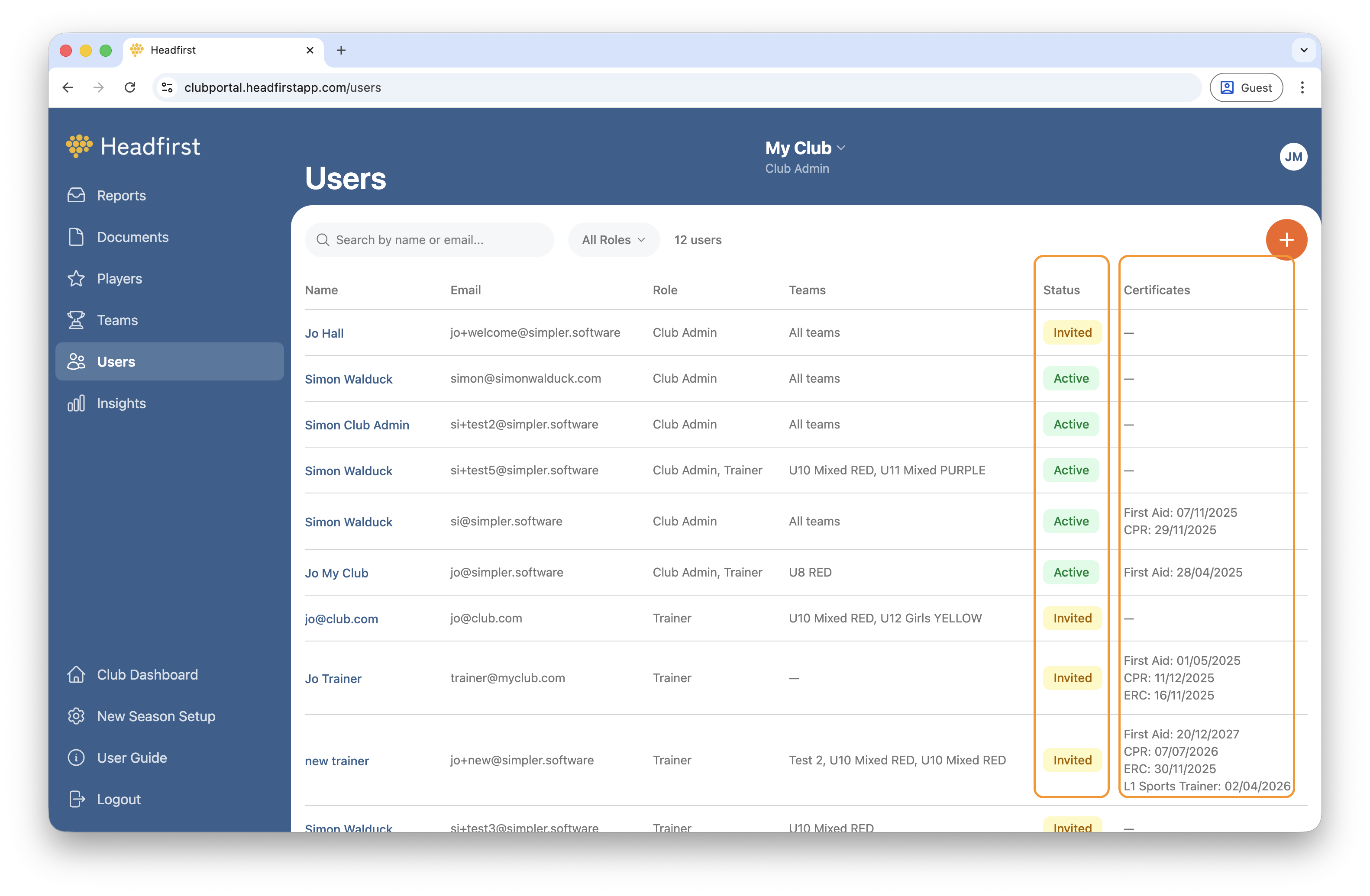
Click the orange + icon to add a new Club Admin or Trainer. Once added, users are listed as Whitelist until they activate their account. An activation email is automatically sent to new users. Once they've downloaded the Headfirst app and set up a password, their status will update to Active.
Club Admins can deactivate or delete users at any time. Deactivated users will be listed as Deactivated and will lose access to their account and data until reactivated.
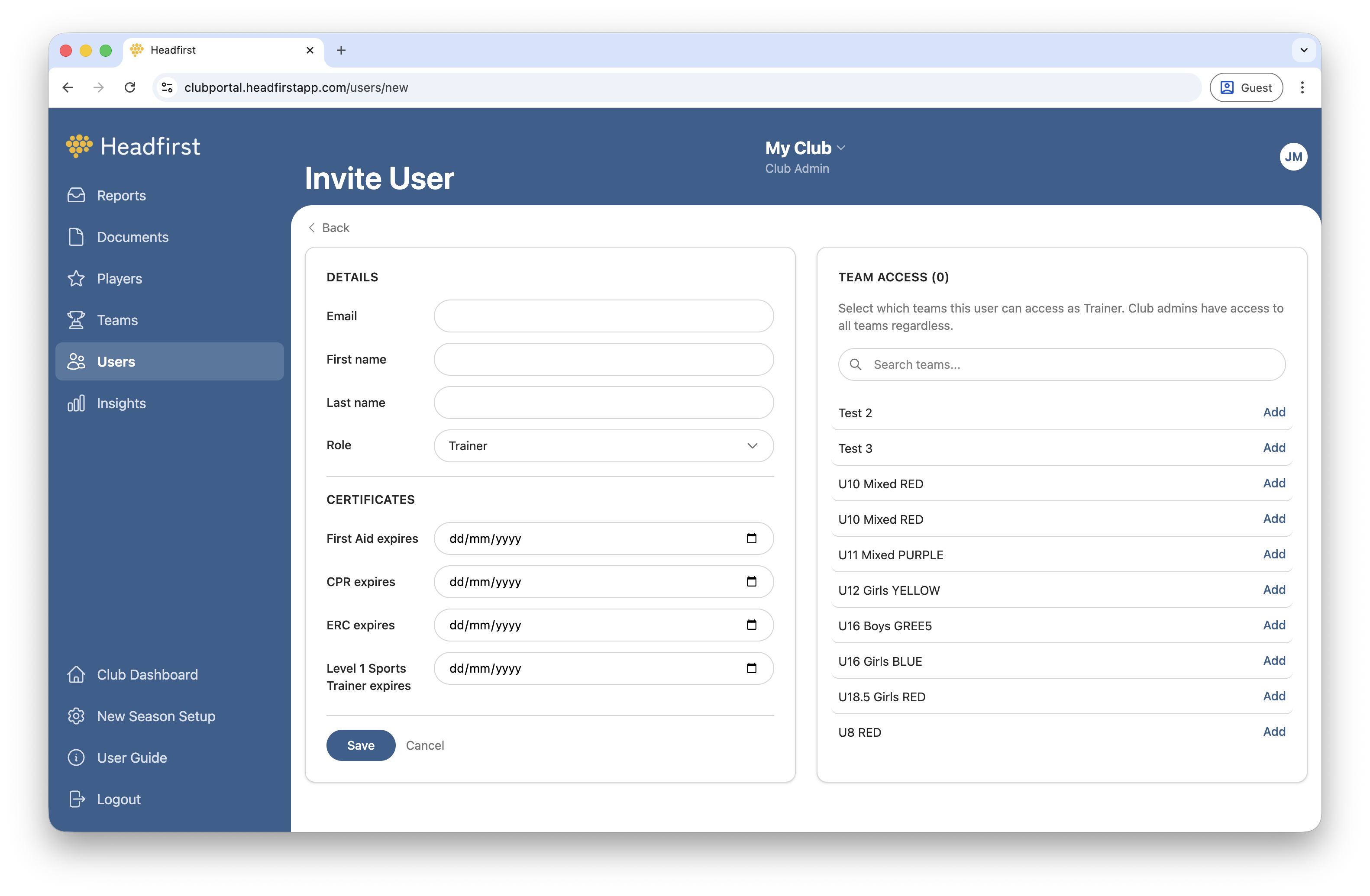
Allocate one or more teams to each Trainer. Team allocations can be updated at any time.
A handy overview across all your teams.
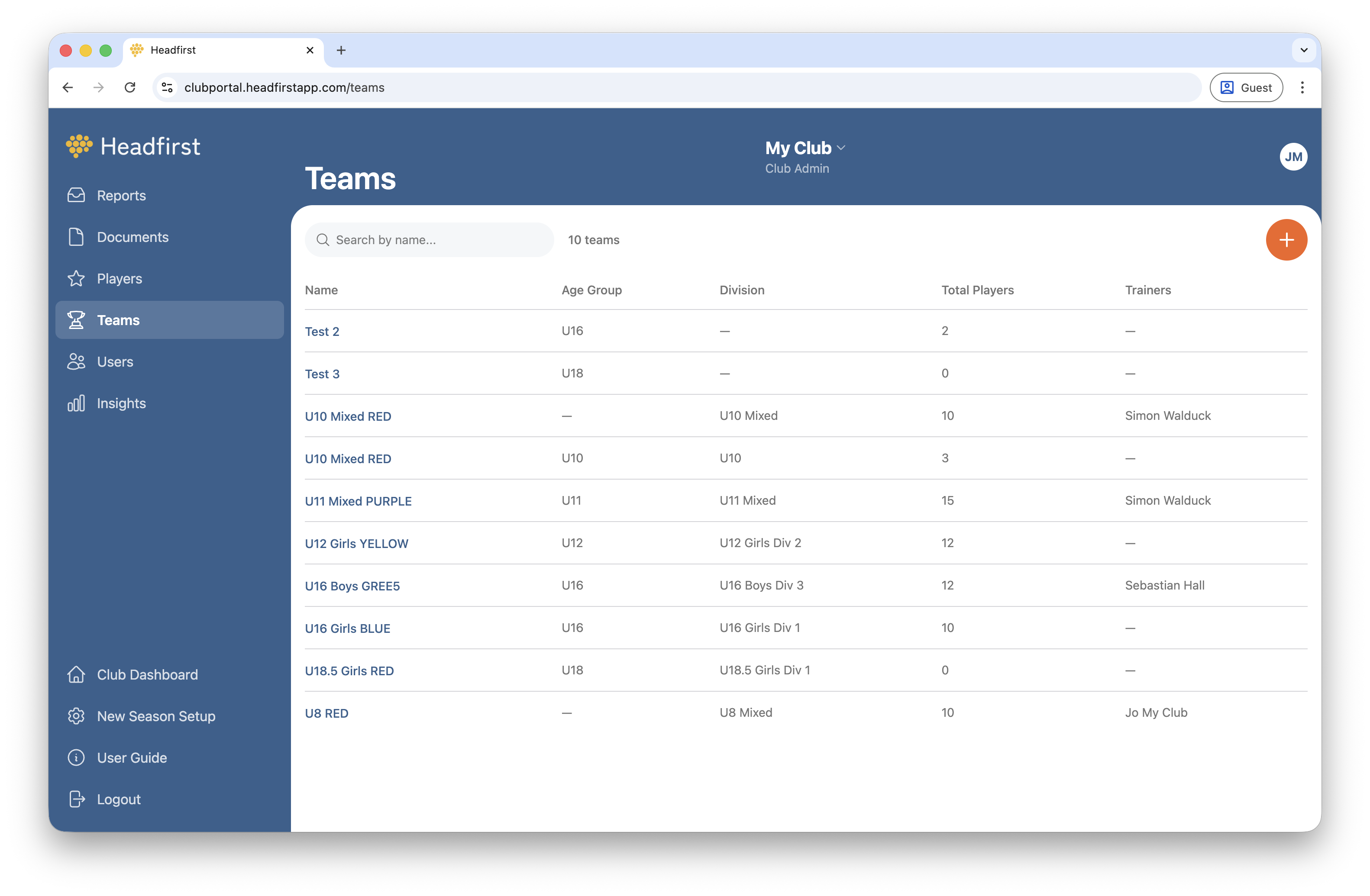
Get a quick overview of team trainer assignments and player counts across your club.
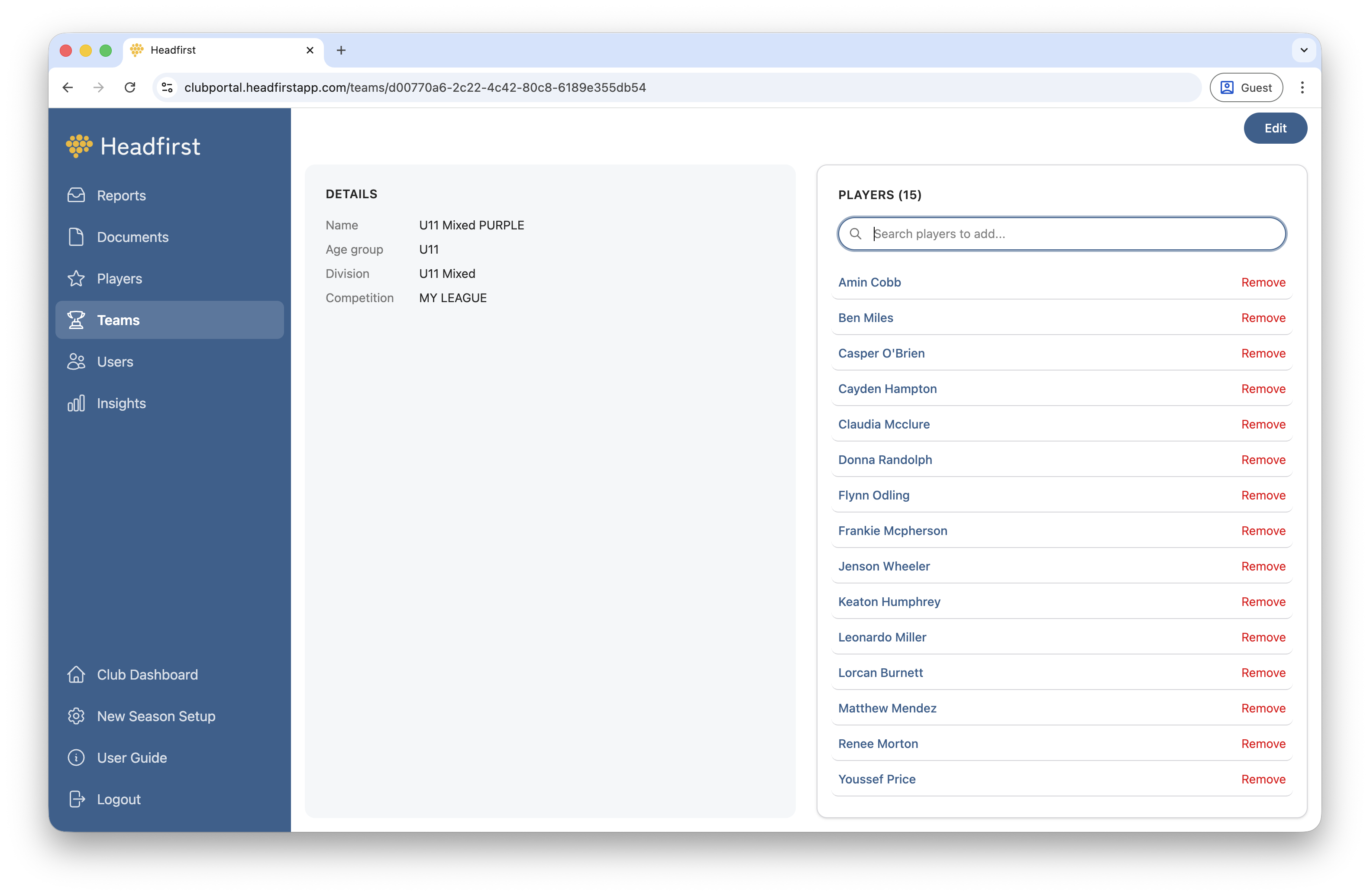
Manually add or remove players from teams as needed. Particularly useful for senior clubs where team selection changes week to week.
Insights gives you a clear view of your data, helping you spot trends and understand what's happening across your club.
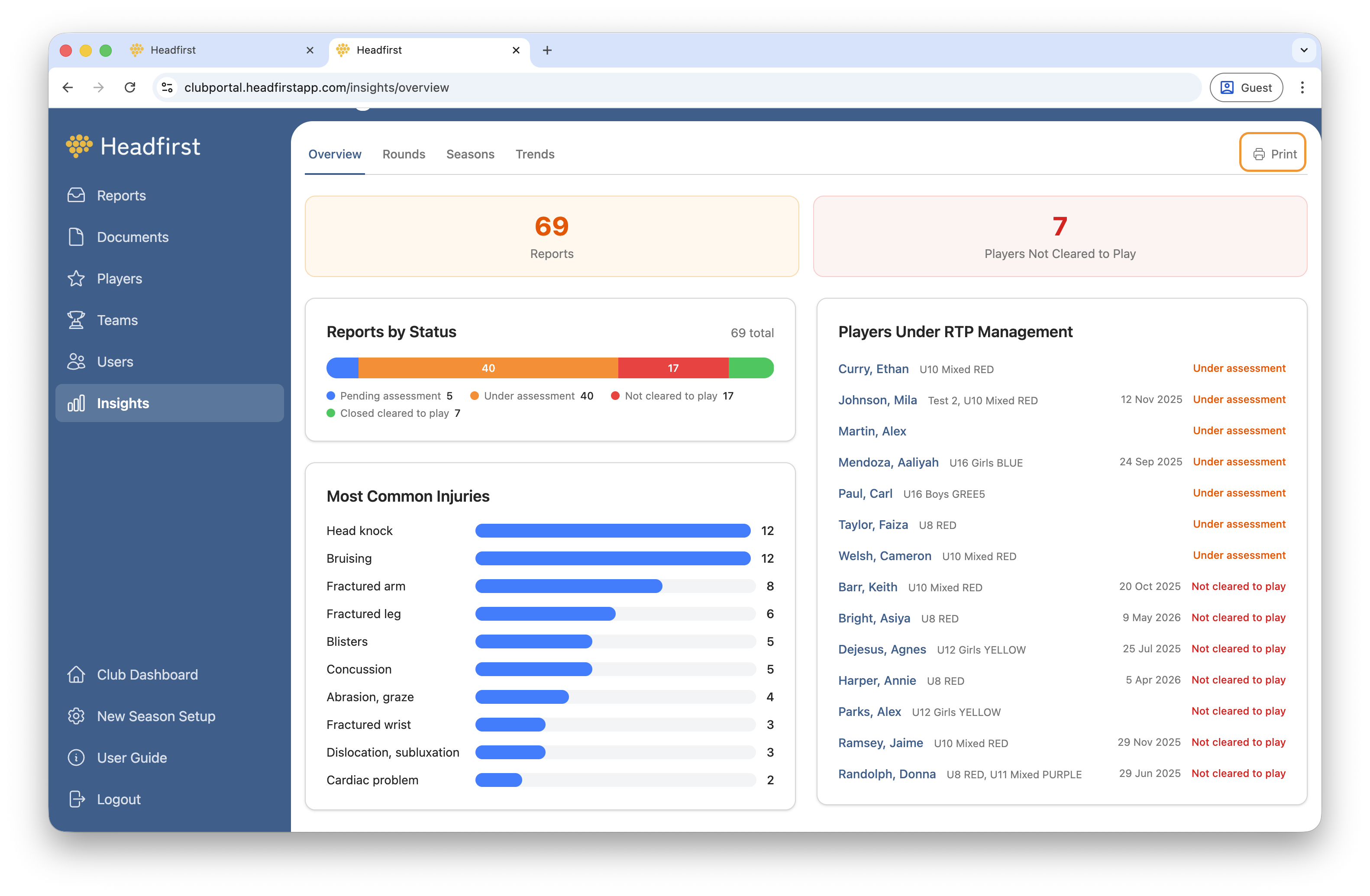
Use the Overview, Round, Season, or Trends view to explore and focus on the data that matters most to you. Each view can also be downloaded as a PDF for easy sharing or record-keeping.
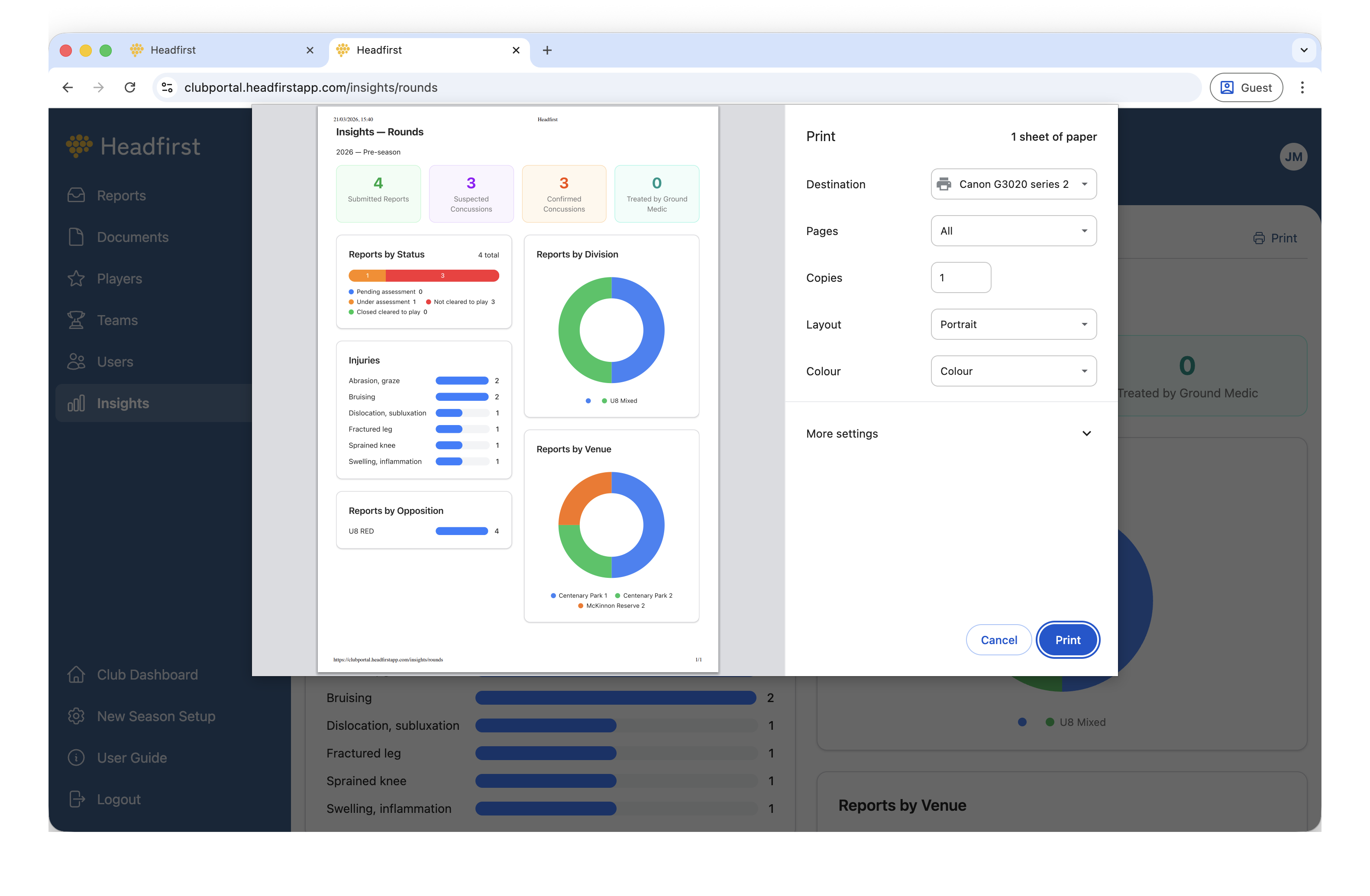
Sample Round Summary.
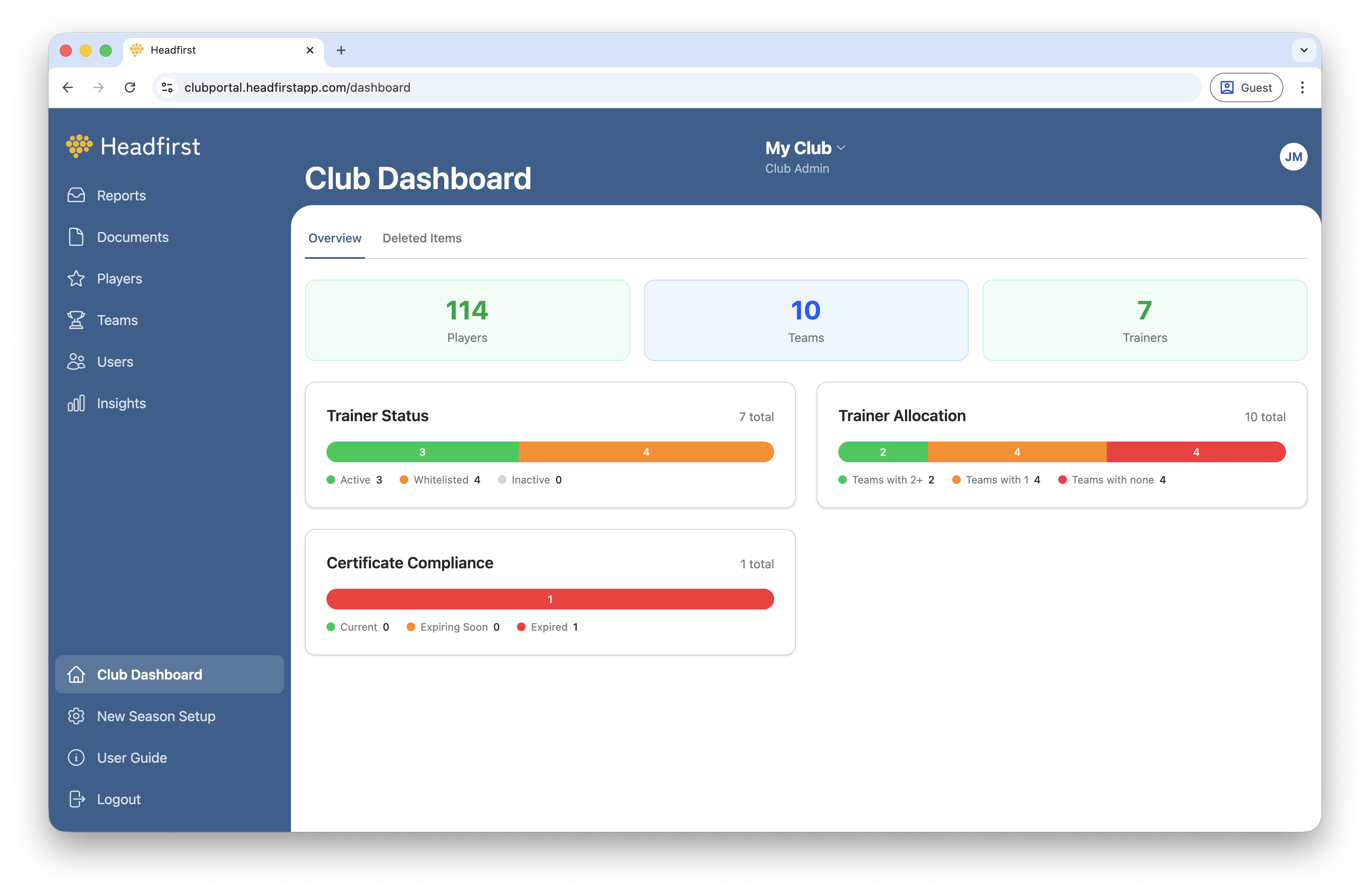
The dashboard gives you a quick overview of your club setup, including the number of players, teams, and users registered. It's also where you'll find your Deleted Items, any deleted files can be recovered here within 30 days.